
Android phones don’t usually slow down all at once. It happens gradually. Apps start opening slower, small freezes start showing up, and the phone just feels running like a snail.
Well, it doesn’t mean your phone is dying.
When a phone starts slowing down, people usually look for cleaner apps right away. It feels like the obvious fix. But in reality, you don’t need extra apps to speed things up. A lot of them just add to the problem.
When an Android phone starts lagging, making some small changes usually helps more than people expect. Here in this how-to guide, we’re going to make you understand all about speeding up your Android phone without installing any additional apps.
A Quick Reality Check

A slow phone doesn’t always mean weak hardware.
Most slowdowns happen because:
- Too many background processes pile up,
- animations eat unnecessary resources,
- storage gets cluttered,
- and settings stay enabled long after you stop using them
In other words, the phone isn’t broken. It’s just overwhelmed.
Let’s fix that.
Restart Your Phone
Restarting your phone sounds too basic to help, so it’s easy to forget about it. But when a phone runs for weeks without a break, things build up in the background. A restart clears some of that out and usually makes things feel smoother again.
Turn Off Animations
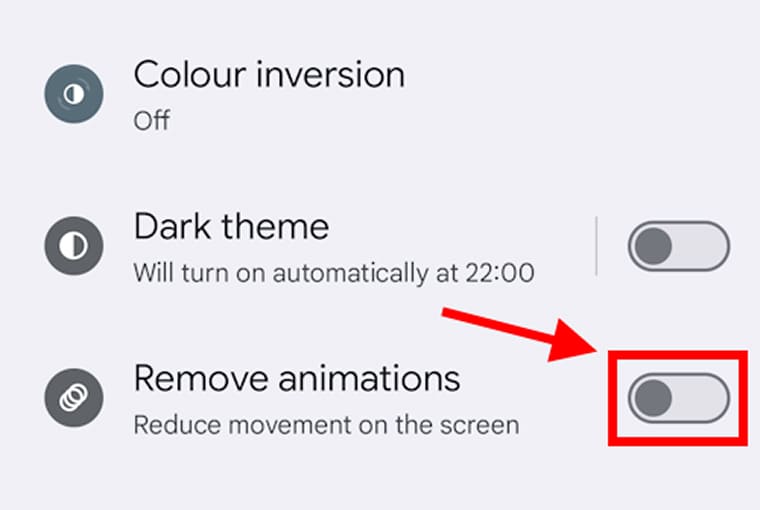
Android animations look nice, but they slow things down more than people realize.
Every time you open an app or switch screens, there’s an animation happening in the background. Turning those down doesn’t break anything – it just makes the phone respond faster.
For this, you need to enable Developer Options. Here’s how:
- Go to Settings
- Open About Phone
- Tap “Build Number” 7 times
- Go back and open Developer Options
Once there, reduce:
- Window animation scale
- Transition animation scale
- Animator duration scale
Set them to 0.5x or turn them off entirely.
With this single tweak, your phone suddenly feels like it’s responding instead of thinking.
Clear Storage the Right Way

Low storage is one of the biggest reasons behind the slow performance of Android phones. For this, you can consider clearing storage.
But clearing storage here doesn’t mean deleting apps carelessly or removing photos you need. It’s about getting rid of the clutter you don’t even realize is there.
Here is all you need to check:
- cached data inside apps
- downloaded files you forgot about
- old videos from WhatsApp or Telegram
- screenshots you never needed
When storage gets tight, Android struggles to manage background tasks properly. Freeing even a few gigabytes can improve performance more than expected.
Stop Apps From Running in the Background
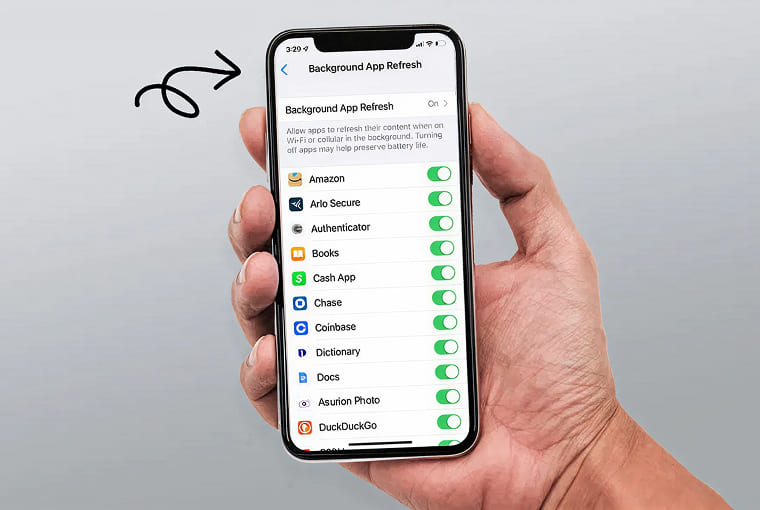
Many apps quietly run even when you’re not using them. Social media apps, shopping apps, fitness apps, and a lot more! They are all like staying awake. Over time, they start draining memory and slowing things down.
To stop these apps from running in the background, all you can do is:
- Navigate to Settings > Apps > App Battery Usage
- Restrict background activity for apps you don’t use frequently
For instance, you don’t need your food delivery app running 24×7. So, stop it!
Disable Features You Don’t Use
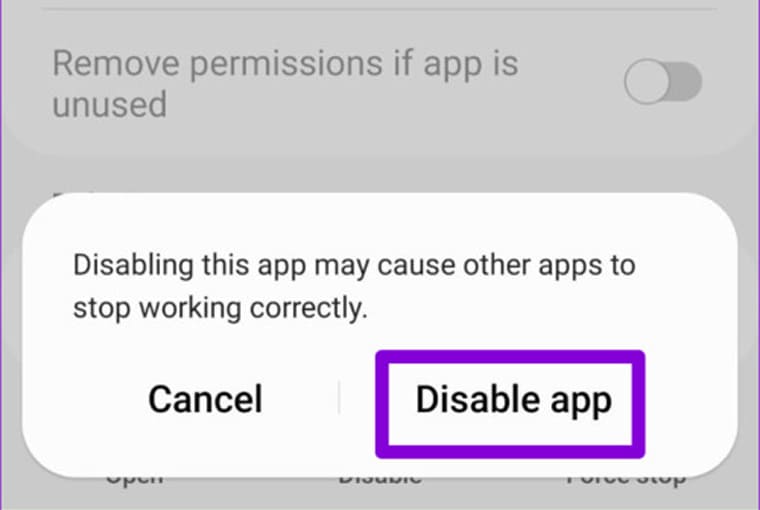
Android is jam-packed with features that sound useful but rarely get used.
A few of them are:
- Nearby device scanning
- Bluetooth always on
- Location services for every app
- Digital assistants are listening in the background
If you’re not using these regularly, turn them off. Know that every enabled feature uses a little processing power. One feature doesn’t matter much, but ten of them surely add up.
Reduce Widgets and Live Wallpapers
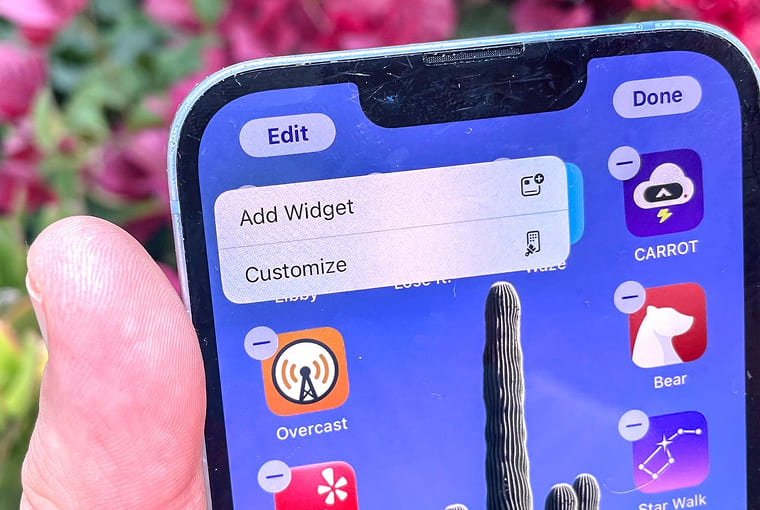
Weather widgets and live wallpapers look nice, but they’re constantly refreshing in the background. That’s not a big deal on powerful phones, though it can start to weigh things down on older or mid-range devices.
Hence, try removing widgets you don’t check daily. You can even switch to a simple wallpaper instead of a live wallpaper.
Update Your Phone

System updates often include performance improvements, bug fixes, and memory optimizations. If your phone hasn’t been updated in months, check for updates. But don’t update just for the sake of it if your device is already stable and very old. Sometimes newer updates are heavier.
Reset App Preferences

Over time, app permissions and defaults get messy. Resetting app preferences doesn’t delete data, but it refreshes how apps interact with your system.
This helps in fixing:
- Misbehaving apps
- unnecessary background access
- random slowdowns caused by permission conflicts
Avoid Task Killer Habits
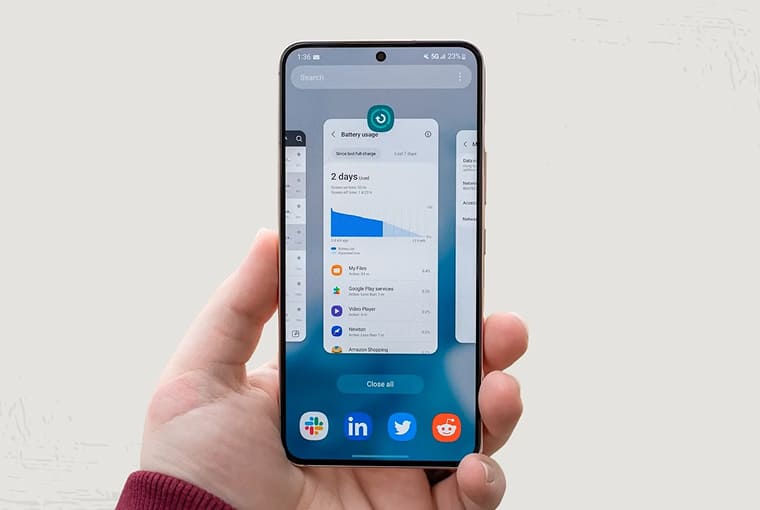
This might surprise you, but constantly force-closing apps doesn’t make Android faster. In many cases, it makes things worse. Android is designed to manage memory on its own. When you keep killing apps, the system has to reload them repeatedly, which uses more resources.
We suggest that you let your Android do its job.
Factory Reset: Last Option, Not First
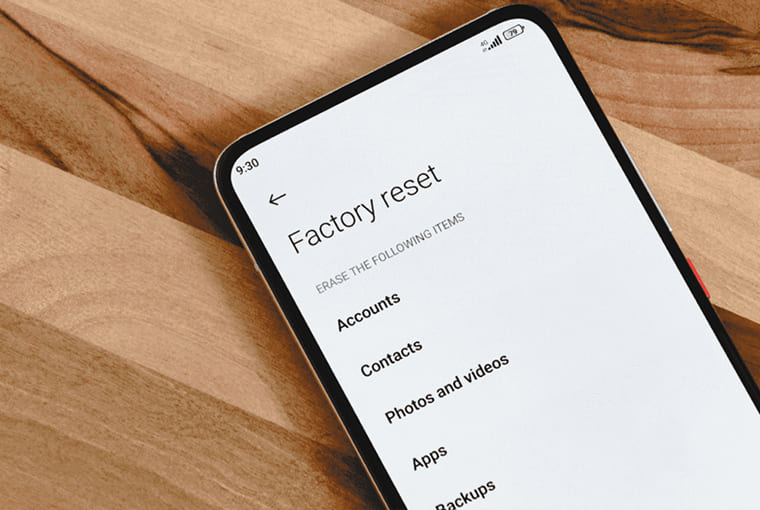
If your phone has been slow for years and nothing helps, a factory reset can feel like a fresh start. But don’t rush into it.
First, back up your data and reset only if necessary, and reinstall apps slowly instead of everything at once. Many people reset their phones only to reinstall the same clutter again. A reset works best when followed by better habits afterward.
Some Quick Tips
- Restart your phone once a week
- Keep at least 20-25% storage free
- Remove apps you don’t use anymore
- Don’t install “booster” or “cleaner” apps
- Keep animations reduced
To Conclude
Android phones don’t slow down overnight. They slow down gradually, and you can speed them up the same way.
Take a few minutes, make a few changes, and your phone will feel noticeably better. Not brand-new, maybe, but definitely faster and less frustrating.
We wish you a happy Android experience!